This guide walks you through connecting Axiom to an OpenClaw agent. OpenClaw uses mcporter to handle OAuth authentication and scope your agent's access to only the MCP tools it needs. Once connected, your agent can check your payment method, make purchases, and log receipts through Axiom.
What you'll need
- An OpenClaw account with at least one configured agent
- mcporter v0.8.0 or later on your agent's PATH (check with
mcporter --version) - A headless browser CLI so your agent can read the activation URL from the rendered OAuth page. Either works:
- Recommended:
agent-browser(Rust native, fast, no Python needed) —npm install -g agent-browser && agent-browser install - Alternative:
browser-use(Python) —uv add browser-use
- Recommended:
- An Axiom account with a linked payment method and spending rules configured
Step 1: Install the Axiom Wallet skill
The easiest way to get started is to point your agent to the Axiom Wallet skill on ClawHub. Tell your agent:
"Set up Axiom Wallet. Follow the guide at docs.useaxiom.ai."
Your agent will install the skill and prepare for authentication. The skill is also available directly on ClawHub at clawhub.ai/axiom-wallet/axiom.
Step 2: Authenticate with mcporter
Your agent registers Axiom and starts the OAuth flow:
Register Axiom
mcporter config add axiom --url https://mcp.useaxiom.ai/mcpStart authentication
mcporter auth axiom --reset --oauth-timeout 300000 --log-level infomcporter prints the OAuth authorize URL in its log output. Your agent opens that URL with its headless browser and reads the activation URL off the rendered page. The two are different: the agent navigates to the authorize URL, and only the activation URL is for you. Your agent will send you the activation link with instructions to open it and approve access.
Step 3: Approve permissions
Open the link your agent provided, sign into Axiom if needed, and review the permissions being requested:
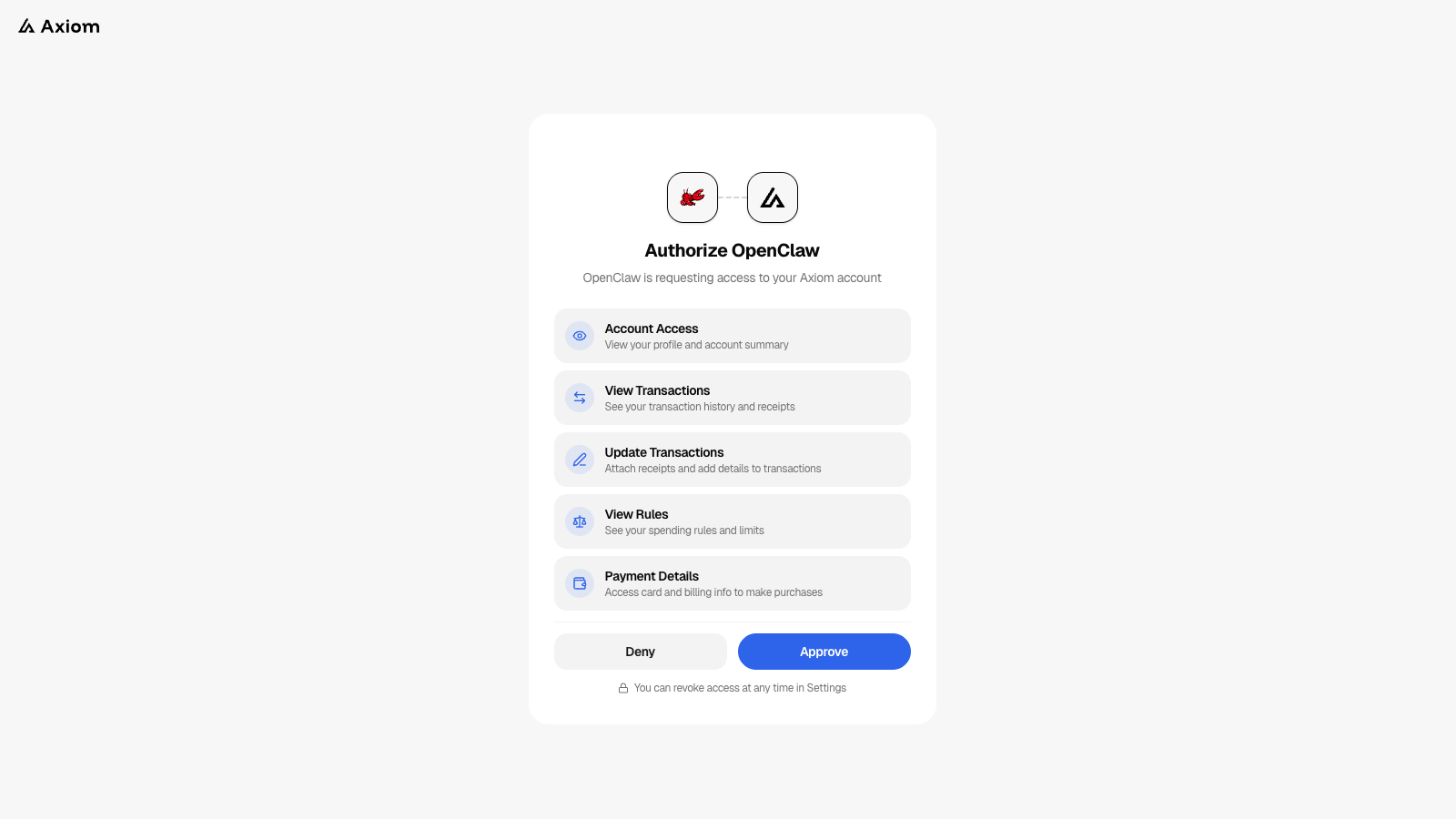
- account:read View your profile and linked payment method
- rules:read View your spending rules and limits
- payments:read Read the progress and status of agent purchases
- payments:write Start and resume purchases within your spending rules
- transactions:read View transaction history
- transactions:write Attach receipts and update transaction details
- mandates:write Authorize purchase-intent mandates
Some of these are reserved for upcoming tools; see the scopes reference for what each grants today.
Click Approve. The browser will confirm the connection automatically, and your agent will pick up right where it left off.
Grant only the scopes your agent actually needs. An agent that only browses or monitors prices doesn't need payments:write.
Step 4: Verify the connection
Ask your agent:
"Check my Axiom payment method."
If your agent calls the get_payment_method tool and returns your card brand and last four digits, the connection is live.
You're all set!
Your OpenClaw agent can now make purchases through Axiom. Every transaction generates a single-use virtual card, checks your spending rules, and logs a full audit trail.
Ready to put it to work? Browse our recipes for step-by-step agent workflows, or ask your agent to make a small test purchase to see the full flow in action.
Troubleshooting
- "mcporter: command not found." Make sure mcporter v0.8.0+ is installed and on your PATH.
- OAuth times out. The default timeout is 5 minutes. Open the activation URL promptly after your agent sends it.
- Agent can't find Axiom tools. Confirm the skill installed correctly and that authentication completed. Re-run the mcporter auth command if needed.
- Purchase blocked. Check that your spending rules allow the category and amount your agent is trying to purchase.